 Wakuoo
-Mirror: Cast and Control Your Phone Screen on PC
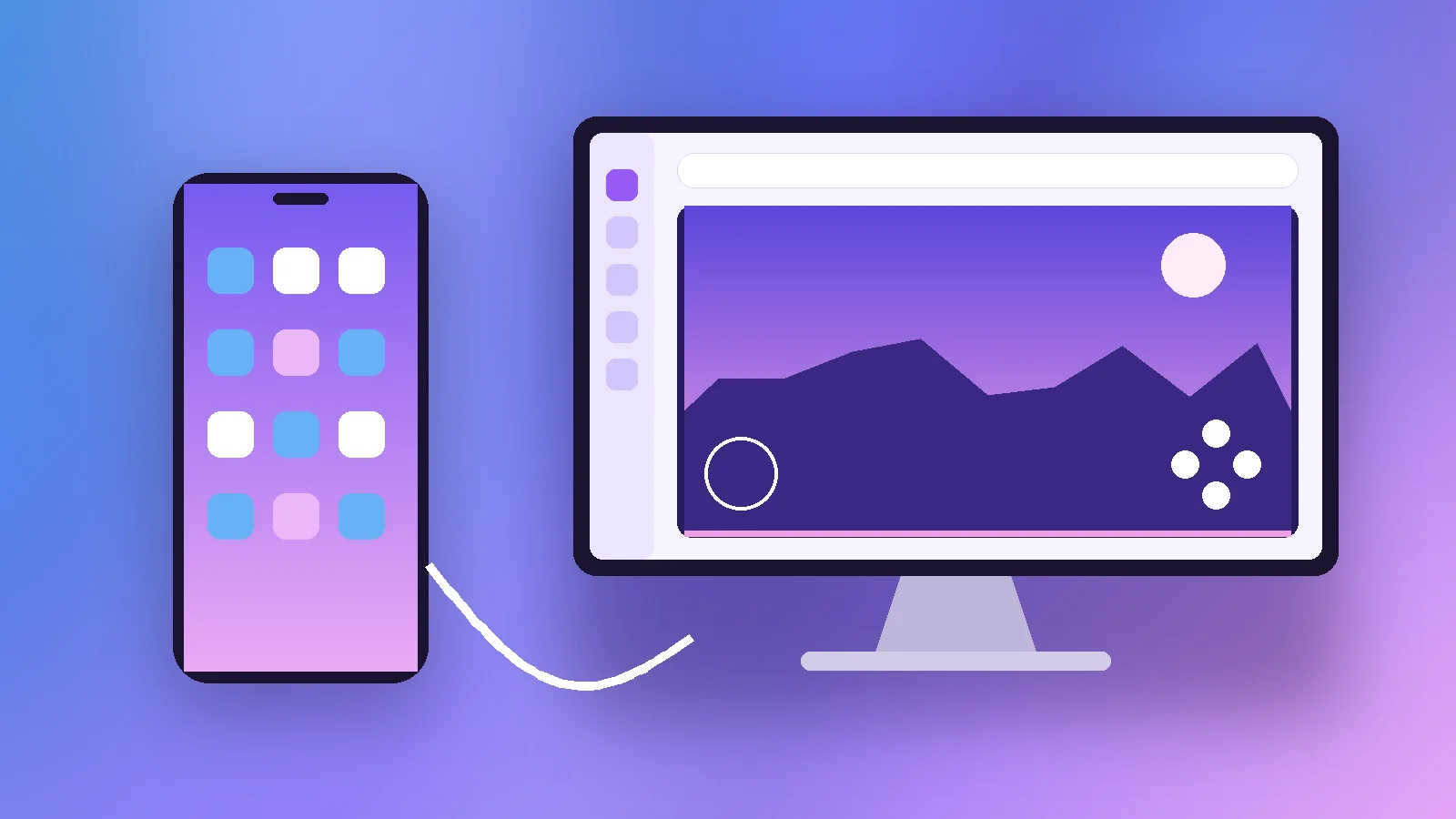
Not every game needs to be installed on your PC. Wakuoo-Mirror casts your phone screen to the computer and lets you control it with the mouse and keyboard, either over a USB cable or across Wi-Fi. It is handy for games you have already set up on your phone or titles that do not support emulators.
What Wakuoo-Mirror Does
Wakuoo-Mirror is a feature inside Wakuoo that displays an Android phone's screen on the PC and sends your mouse and keyboard input back to the phone. The game keeps running on the phone itself.
Why use mirroring instead of the emulator?
Mirroring avoids reinstalling a game on the PC and uses the phone's own processing power. It suits games that block emulators or that you only play occasionally.
Audio transfer
Walkthroughs of the feature show sound being routed from the phone to the PC, so you can use your desktop speakers or headset.
Connecting Over USB
Enable USB debugging
On the phone, open Settings > About phone and tap Build number seven times to unlock Developer options. Then enable USB debugging in Developer options.
Connect and approve
Plug the phone into the PC with a data-capable cable, open Wakuoo-Mirror and accept the debugging prompt on the phone.
Cable quality matters
Charge-only cables do not carry data. If the phone charges but is not detected, swap the cable before anything else.
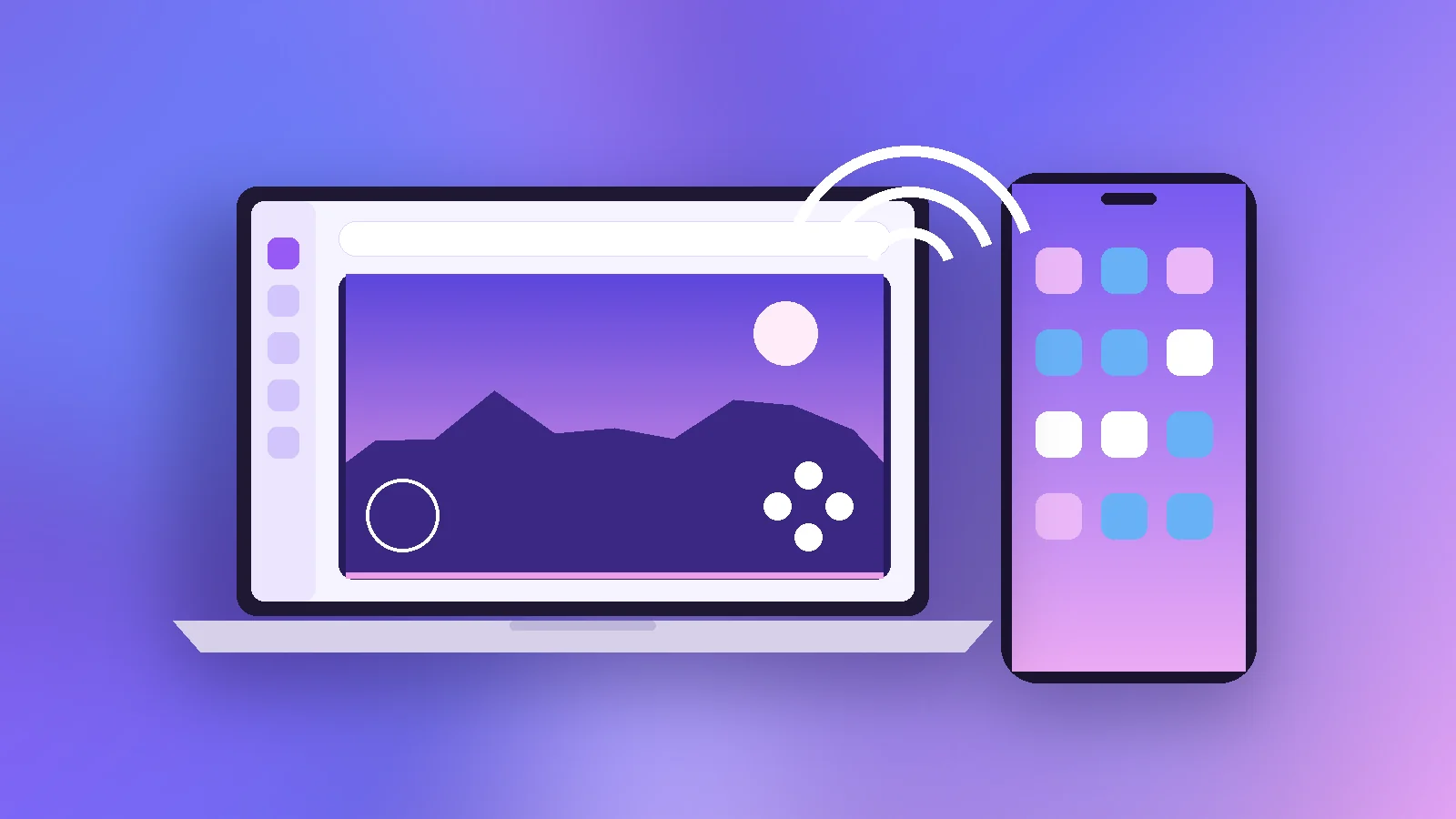
Connecting Over Wi-Fi
Same network requirement
The phone and PC must be on the same local network. Guest networks and some office networks isolate devices from each other, which blocks mirroring.
Latency expectations
Wireless mirroring adds delay compared with USB. For fast competitive games, a cable is the better choice; for slower games Wi-Fi is perfectly comfortable.
Fixing Common Mirroring Problems
Phone not detected
Revoke USB debugging authorizations in Developer options, reconnect and accept the prompt again. Installing the phone maker's USB driver on Windows can also help.
Black screen while mirroring
Some apps, especially streaming and banking apps, block screen capture by design. That is a protection in the app, not a fault in Wakuoo-Mirror.
Privacy Considerations
USB debugging is powerful
USB debugging gives the connected computer wide access to the phone. Turn it off when you are finished, and never approve debugging prompts on PCs you do not trust.
Final Word
Wakuoo-Mirror is a practical companion to the emulator: use it for games you already have on your phone. To start, install Wakuoo from our download page and see the usage guide for more tips.
Related Articles
Wakuoo vs BlueStacks vs LDPlayer: Which Fits Your PC?
An honest comparison of Wakuoo, BlueStacks and LDPlayer covering setup, Android versions, hardware needs, controls and who each emulator suits best.
Read article →
Wakuoo Games: What You Can Play on PC and How to Set It Up
A practical look at Wakuoo games: which genres work best on PC, how 32-bit and 64-bit titles are handled, and how to set up keyboard and gamepad controls.
Read article →
Wakuoo Emulator Lite: Running Wakuoo Smoothly on a Low-End PC
Looking for Wakuoo emulator lite? Learn why there is no separate lite edition and how to tune Wakuoo for low-end PCs with practical, tested settings.
Read article →